Samsung Internet Browser
Screenshots
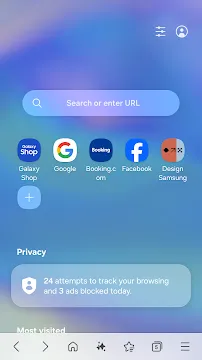
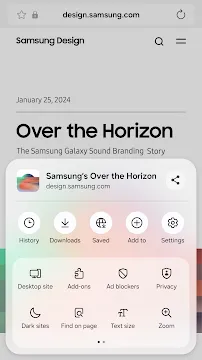


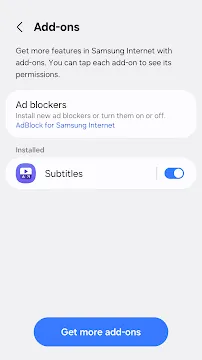
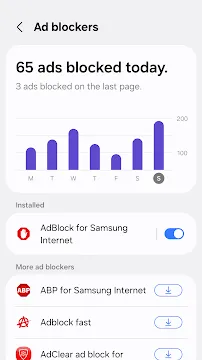
The Samsung Internet Browser offers a powerful alternative to the usual mobile web experience. Initially, Samsung developed it for its own Galaxy devices. Now, however, virtually any Android user can download and enjoy it. Therefore, the browser is not just for Samsung phone owners anymore. This robust application focuses heavily on speed, security, and unique features.
This browser is built on the Chromium engine, similar to Google Chrome. Consequently, you still get excellent web compatibility and performance. But, Samsung Internet adds its own layer of customization and helpful tools. You gain a streamlined and efficient browsing experience. Furthermore, it takes user privacy seriously, offering a secure way to navigate the internet.
Get Samsung Internet: Install the APK on Your Android Device
Samsung Internet is a fast and secure mobile web browser. You can use it on any Android device, not just Samsung phones. You will usually install it directly from the Google Play Store.
However, sometimes you need the APK file. Perhaps the app is not available in your region. Maybe you want an older version. Follow these simple steps to download and install the Samsung Internet Browser APK.
Step 1: Adjust Your Android Settings
First, you must allow your phone to install apps from outside the Play Store. Android calls this “Unknown Sources.”
- Go to your phone’s Settings menu.
- Next, find and tap on Security or Privacy (it varies by phone model).
- Then, look for the option Install unknown apps or Unknown sources.
- Important: You must enable this setting for the app you will use to download the APK (usually your existing browser, like Chrome). Turn on the toggle switch.
You must perform this action only once. You can turn this setting off after installation for better security.
Step 2: Download the Samsung Internet APK File
Now, find and download the installation file. You must use a reputable source for the APK. This prevents installing malware.
- Open your existing web browser.
- Visit Filetomob.com.
- Search for “Samsung Internet Browser APK”.
- Next, Look for the App page.
- Tap the Download button. This action saves the APK file to your phone’s storage.
The file is now on your device.
Step 3: Install the APK on Your Android
Finally, you install the browser using the downloaded file. This process is often called “sideloading.”
- Open your phone’s File Manager app.
- Go to your Downloads folder.
- You will see the Samsung Internet APK file. Tap on it.
- A prompt will appear. It asks you to confirm the installation.
- Tap Install. The process begins immediately.
- Wait a few moments for the installation to finish.
Step 4: Open and Use Your New Browser
You successfully installed the browser. Now, you can start browsing!
- A screen confirms the app installation. Tap Open.
- Alternatively, find the new Samsung Internet icon on your app drawer or home screen.
- Tap the icon to launch the browser.
- Then, review the initial setup. Accept the terms and conditions.
- Start browsing the web quickly and securely!
Enjoy a fast, private, and optimized experience with Samsung Internet Browser.
Get Started with Samsung Internet Browser: Essential First Steps
You installed Samsung Internet on your Android device. Now, let’s unlock its best features. A few quick settings drastically improve your browsing experience. Follow these simple steps right away.
Step 1: Enable a Content Blocker
Content blockers make browsing faster and cleaner. They also save your mobile data. You should enable one immediately after installation.
- Go to the Settings menu. Find the three-line or three-dot menu icon.
- Select “Ad blockers.” This opens a list of available third-party blockers.
- Choose a blocker. Tap the download icon next to your preferred option. You install this blocker as a separate app.
- Turn it on. Switch the toggle to Enable the content blocker.
You just eliminated annoying ads and trackers. Enjoy a smoother, more private web experience.
Step 2: Move the Address Bar to the Bottom
Reach the address bar easily. Modern phones are tall. Moving the bar improves one-handed use and accessibility.
- Go back to Settings. Look for the main settings menu.
- Tap on “Appearance.” This section controls the visual layout.
- Select “Position of address bar.” You will see two options.
- Choose “Bottom.”
Therefore, your address bar is now conveniently at the bottom of the screen. You can navigate effortlessly.
Step 3: Enable Dark Mode for Websites
Protect your eyes. Dark mode reduces screen glare, especially at night. It also helps save battery life on AMOLED screens.
- Open Settings again.
- Select “Appearance.”
- Look for “Dark mode.” Tap on this option.
- Toggle on “Dark mode for websites.”
Furthermore, Samsung Internet now renders most web pages with a dark background. Your eyes will thank you.
Step 4: Explore Quick Menu Customization
The Quick Menu offers powerful shortcuts. This floating button gives you fast access to common actions. Personalize it for your needs.
- Find “Quick menu” in Settings.
- Tap “Customize Quick menu.”
- Drag and drop icons to select your favorite shortcuts. Options include “Go to top” or “New tab.”
Consequently, your most-used features are only a tap away. This small adjustment significantly speeds up navigation.
Essential Navigation and Organization
Samsung Internet is a fast, powerful browser for Android. You can easily manage your web activity. This guide shows you how to navigate and keep things organized. You will master the basics of browsing.
Quick Access and Home Page
Your home page is the gateway to the internet. Customize your homepage for instant access to what you need.
How to Customize Your Homepage
- Open the Samsung Internet app.
- Tap the three horizontal lines (Menu) in the bottom right.
- Select “Settings.”
- Tap “Homepage.”
Choose one of the following options:
- Quick access: This shows a visual grid of your most visited sites.
- Custom page: You can set any URL (web address) as your home page.
- Default page: This uses the standard Samsung Internet start page.
Using “Quick Access” Tiles
“Quick access” provides shortcuts. These are visual tiles for your frequently visited websites.
- The browser automatically adds sites you visit often.
- You can also add your own favorite sites manually.
- Tap the plus sign (+) tile to add a new site.
- Tap any tile to open the website instantly.
Bookmarks and Saved Pages
Bookmarks help you save sites for later. Saved Pages let you read offline. Organize your bookmarks for easy retrieval.
How to Bookmark a Page
- Go to the page you want to save.
- Tap the star icon (⭐) in the address bar or the three-line Menu.
- Select “Add bookmark.”
- Name the bookmark clearly.
- Choose a folder location.
- Tap “Save.”
Organizing Bookmarks into Folders
A well-organized system saves time. Create folders to categorize your links.
- First, go to the Bookmarks screen.
- Tap the three-dot menu (More options).
- Select “Create folder.”
- Name the folder (e.g., “Work,” “Recipes,” or “News”).
- Next, you can move existing bookmarks into these folders.
- Tap and hold a bookmark to start moving it.
Understanding Saved Pages
The “Saved Pages” feature is very useful. It downloads the entire webpage to your device.
- You can read the page later, even without an internet connection.
- This is perfect for long articles or travel reading.
- To save a page, tap the three-line Menu.
- Then, select “Save page.”
- Find all your saved pages in the Bookmarks/Saved Pages section.
Tab Management Mastery
Tabs let you juggle multiple sites at once. Mastering tab management keeps your browser tidy and efficient.
Opening, Closing, and Switching Tabs
Tab operations are quick and intuitive. Manage your open tabs easily.
- Open a new tab: Tap the tab counter icon (a square with a number). Then, tap the plus sign (+).
- Close a tab: Tap the tab counter icon. Tap the ‘X’ button on the tab thumbnail.
- Switch tabs: Tap the tab counter icon. Tap the thumbnail of the page you want.
Highlight: The Grid View
The Grid View improves your organization. This view displays tabs in a clean, scrollable grid.
- It makes finding a specific tab much faster.
- Tap the tab counter icon to see the Grid View.
- Look at the site’s thumbnail image and title to identify it.
Tip: Auto Close Unused Tabs
Keep your browser running smoothly. Enable the auto-close feature to declutter your experience.
- Go to the three-line Menu.
- Select “Settings.”
- Tap “Tabs.”
- Turn on “Auto close unused tabs.”
- Choose a time limit (e.g., after 1 day, 3 days, or 1 week).
- The browser will automatically close tabs that you have not viewed recently.
Samsung Internet: Power Up Your Security and Privacy
Samsung Internet Browser offers excellent features for Android users. It helps you take control of your security and privacy. You can browse the web faster and with better protection.
Secret Mode
Secret Mode is Samsung Internet’s private browsing option. Think of it as Incognito Mode but with boosted security. It is simple to use.
- The browser does not save your browsing history.
- It deletes all cookies and site data when you close the tabs.
- This keeps your activities hidden from others using your device.
Password/Biometrically Lock Secret Mode
You can add a layer of ultimate privacy. You lock the mode so only you can access it.
- Go to the browser’s Settings.
- Navigate to Privacy and Security.
- Select Secret Mode Settings.
- Activate the Use password toggle.
- Set a strong password.
Crucially, you can also activate Biometrics. Use your fingerprint or face recognition. This makes unlocking fast and highly secure.
- No one can open your private tabs without your unique biometric data or password.
- Therefore, your sensitive browsing stays completely private.
Ad Blocking and Content Blockers
Annoying ads and pop-ups slow you down. They also clutter your screen. Samsung Internet helps you block them.
Finding and Installing a Content Blocker
Samsung Internet uses third-party apps to block content. This gives you flexibility.
- Tap the Menu (three lines or dots) in the browser.
- Select Ad Blockers or Extensions.
- The browser presents a list of available ad-blocking apps.
- You simply Download and Install the blocker you prefer.
- Finally, Activate the blocker from the same menu.
The Benefit of Content Blockers
Content blockers dramatically improve your web experience.
- You enjoy faster browsing. Pages load quickly without heavy ad scripts.
- You see less clutter on your screen.
- Furthermore, blocking ads can save mobile data.
Smart Anti-Tracking and Protected Browsing
Samsung Internet has powerful built-in tools. They fight back against invasive tracking.
Smart Anti-Tracking
Many websites use trackers to monitor your activity. They follow you across different sites. This is called cross-site tracking.
- Smart Anti-Tracking automatically detects these trackers.
- It actively blocks them.
- Why is this important? It prevents companies from building a detailed profile of your online behavior.
- This feature gives you a greater sense of anonymity online.
Protected Browsing
Security is also a top priority. You need protection against dangerous websites.
- The browser includes Protected Browsing.
- It warns you about sites known to contain malware or phishing scams.
- This is a crucial defense. It stops you from accidentally visiting malicious sites and protects your data.
You gain powerful security and privacy features with Samsung Internet.
Samsung Internet Browser: Customization and Productivity Tools
The Samsung Internet Browser for Android offers excellent ways to customize your experience. You can easily adjust its features. These tools help you work smarter and faster. They turn your browsing into a highly productive task.
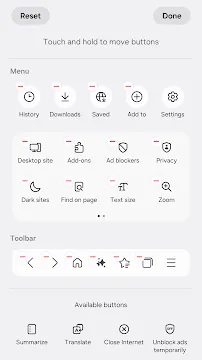
Customizing the Menu Bar
You can make the browser truly your own. The bottom toolbar is the main navigation hub. Therefore, you should arrange it to fit your needs.
- Rearrange icons: Go to Settings. Tap Appearance. Choose Customize Menu.
- You will see a grid of available actions.
- Next, simply drag and drop the icons. Put the most-used features on the bar.
- For example, you might want the Share or Saved Pages icon ready instantly.
Address Bar Position
You also control the main input area. This is the address bar.
- Go back to Appearance in Settings.
- Find the Address bar position option.
- You can set it to the Top or the Bottom of the screen.
- Consequently, users with larger phones may prefer the bottom for easier reach.
Video Assistant
Enjoy web videos with greater control. The Video Assistant makes video playback better.
- When you start a web video, a small floating icon appears.
- Tap this icon to show video controls.
- In addition, you can use the Popup Video feature.
- This lets the video play in a small, resizable window.
- You can keep watching the video while you browse other pages.
- Thus, you avoid interrupting your workflow.
Background Play for Audio/Video
Listen to web media even when the app is minimized. This feature is especially great for music and podcasts on streaming sites.
- Open the browser’s Settings.
- Select Useful Features.
- Find the option called Background play.
- Simply toggle this feature on.
- Now, you can press the home button or switch apps.
- Ultimately, the audio will continue playing in the background.
Reader Mode
Enjoy a distraction-free reading experience. Reader Mode strips away clutter from web articles.
- When you open an eligible article, look for the Reader Mode icon.
- This icon often looks like a book or a page of text.
- It typically appears in the address bar.
- Tap it to instantly activate the mode.
- The page becomes simple. It shows only the text and key images.
- You can often adjust the font size and background color.
- This helps reduce eye strain.
Samsung Browser: Samsung Ecosystem Integration
Samsung Internet Browser offers a premium experience. It is the default browser on Samsung Android devices. This browser integrates deeply with the Samsung Ecosystem. These unique features make it the smart choice for anyone with multiple Samsung products.
Seamless Security with Samsung Pass
Samsung Pass is a major benefit. It offers seamless integration for security. You can save your login credentials easily. It uses your biometrics, like your fingerprint or iris scan, for security.
- Save your usernames and passwords once.
- The browser uses your biometrics to auto-fill them.
- This makes logging into websites fast and very secure.
- Therefore, you don’t need to remember complex passwords.
This feature saves time and enhances security significantly.
Effortless Syncing via Samsung Cloud
Another key feature is Samsung Cloud Sync. This feature links your browser data across all your Samsung devices. You enjoy a consistent browsing experience.
- Sync your bookmarks. Keep your favorite sites accessible everywhere.
- Sync your browsing history. Pick up browsing right where you left off.
- Sync your saved pages. Read content offline on any device.
Thus, your work flows smoothly from your phone to your tablet. Samsung Cloud manages the data transfer effortlessly.
Optimized Productivity with DeX Support
For power users, DeX Support is a huge advantage. Samsung DeX lets you connect your phone to a monitor. This creates a desktop-like environment. The Samsung Internet Browser is optimized for this larger display.
- Connect your Samsung phone to an external screen.
- The browser switches to a desktop-friendly view.
- You can open multiple tabs easily.
- Manage your browsing in a familiar multi-window interface.
Consequently, you boost your productivity. The browser provides a full desktop experience using just your phone.
Frequently Asked Questions About Samsung Internet Browser for Android
Samsung Internet Browser is a popular choice. Many Android users prefer it. We answer your top questions here.
What is Samsung Internet?
Samsung Internet is a mobile web browser. Samsung developed it. It is for smartphones and tablets. It runs on the Android operating system. It often comes pre-installed on Samsung Galaxy devices.
Why should I use Samsung Internet?
You might enjoy its speed and security. It offers several unique features. For instance, you get built-in Ad Blocking extensions. Furthermore, it supports a Secret Mode. This gives you more privacy when browsing. It also integrates well with other Samsung services.
Is Samsung Internet secure?
Yes, it is very secure. Samsung constantly updates the browser. It includes features to protect your data. Secret Mode uses different settings. It ensures browsing history, cookies, and cached data disappear.
How do I block ads?
Blocking ads is simple. First, you need an Ad Blocker extension. You can find these in the browser’s Extensions menu. Then, you simply download and enable your chosen ad blocker. This will significantly reduce the ads you see.
Can I customize the browser?
Absolutely! Samsung Internet allows great customization. You can change the appearance. Users can modify the toolbar layout. Moreover, you can adjust the text size. You can also choose different high-contrast modes. This improves readability.
Does it have a Dark Mode?
Yes, it features a Dark Mode. This mode changes the background to a dark color. It helps reduce eye strain. This is especially useful in low-light conditions. You can easily enable it in the browser settings.
How do I sync my data?
You can easily sync your data. This includes your bookmarks and browsing history. You will need a Samsung Account. Go to the browser’s settings. Then, link your Samsung Account. Now, your data will sync across your Samsung devices.
Can I use extensions?
Definitely. Samsung Internet supports a range of extensions. These add extra functionality. Popular extensions include Ad Blockers and various content enhancers. You access them through the main menu.
Will it work on non-Samsung phones?
Indeed, it will. Although Samsung designed it, the browser works on other Android phones.
Where are my downloads saved?
Your downloads usually save to the default “Download” folder. This is on your phone’s internal storage. However, you can check or change the download location. Look in the browser’s Settings menu under the “Advanced” section.
How do I update the browser?
You update Samsung Internet through the Google Play Store. Alternatively, you can use the Galaxy Store. Updates bring new features. They also ensure better security. Always keep your browser updated.